Edit PDF Offline PDF editor for iPhone and iPad
Edit your PDFs. Nothing leaves your device.
Change the text in a PDF, merge, split and reorder pages, all on your iPhone or iPad. No account, no upload, no server: every document stays where it is.
- 100 % offline
- No account
- No ads or tracking
- iPhone and iPad, iOS 17 or later


Edit the text that’s already there.
Tap a line, change it, save. The words are rewritten inside the PDF itself, in the document’s own font, not covered with a box or turned into a picture.
Edit Text mode

-
Choose Edit Text
From the reader’s menu. Every piece of text on the page gets an outline.
-
Tap the line you want to change
Replace a word, a figure or a whole sentence. Adjust the size or colour, or switch to Helvetica, Times or Courier with bold and italic.
-
Apply, then save
The page updates straight away. Save as a copy, or replace the original if you prefer.
-
Keeps the look. The document’s own font, size, colour, position and spacing are reused for unchanged text and for your edit.
-
Fits, or tells you. Longer text is checked against what follows on the line. If it would overlap, the app says so and offers to shrink it to fit.
-
Undo and redo. Every edit is one step back or forward, on any page, until you save.
-
Honest about limits. Scanned pages, fonts that can’t be mapped and scripts that need shaping are refused with a reason, never silently broken.
Read, search, jump.
A fast reader built on Apple’s own PDF engine. Scroll through any document, pinch to zoom, find a word, and go straight to the page you need.
Reading view

-
Search inside the document
Type a word and every match is listed with its page and context, highlighted on the page, with previous and next to step through them.
-
Pages at a glance
A grid of thumbnails to jump anywhere, a Go to page command, and a floating pill that always shows where you are.
-
Zoom, select, copy
Pinch to zoom up to 8×, in portrait or landscape. Long-press to select text and copy it, like anywhere else on iOS.
-
Protected PDFs open too
Enter the password once and the document opens, merges or splits. The password is kept in memory for the session and never written down.
Merge, split, reorder.
The three things people do with PDFs most, done on the device with the app’s own engine. The originals are never touched; every result is a new document in your library.
-
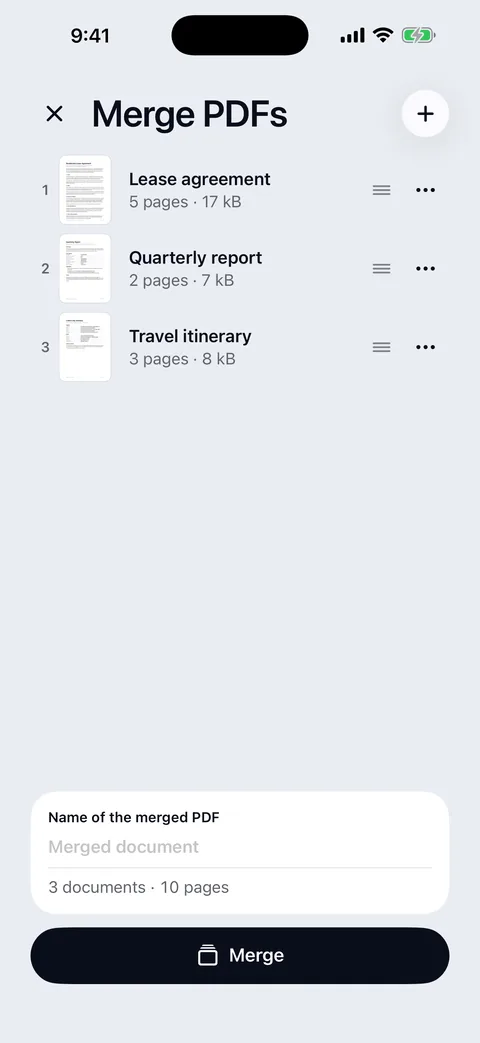
Merge PDFs
Pick two or more documents from your library or from Files, put them in order, name the result.
- Drag to reorder, preview any input, remove with a swipe.
- Nothing lost: page sizes, rotation, links, forms, bookmarks and annotations come along.
- Protected inputs ask for their password. Progress is shown page by page, with Cancel.
-
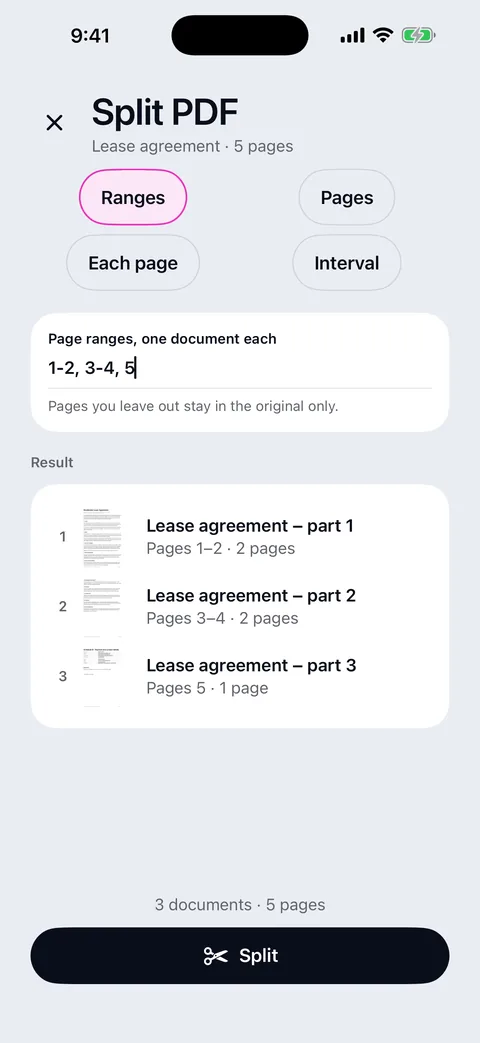
Split a PDF
By page ranges, by picking pages on a grid, one document per page, or every N pages.
- See the result first: each part with its pages, and the pages you left out.
- Typed ranges are checked as you type: overlaps, reversed or out-of-range pages are explained.
- Share the parts, save them to Files, or keep them together as one ZIP.
-
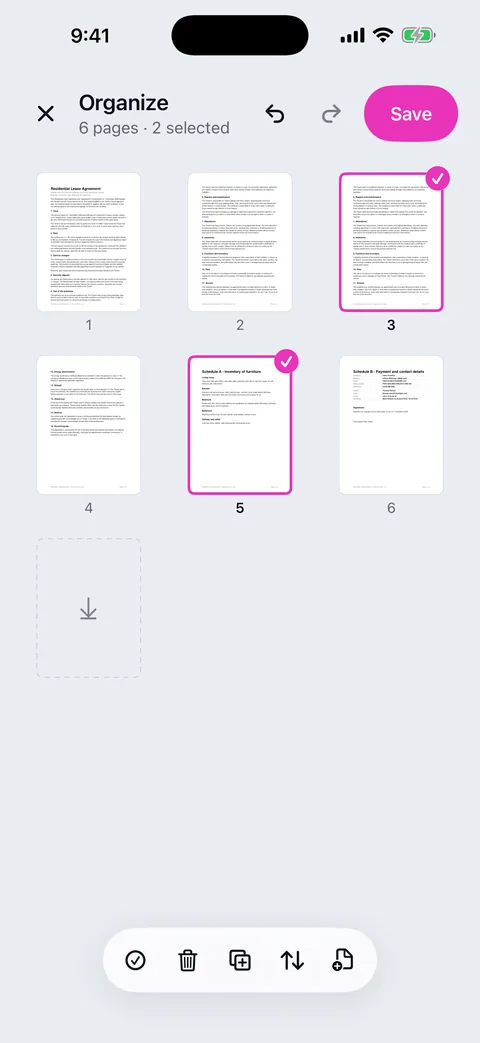
Organize pages
Rearrange a document on a grid of its pages, then save it as a copy or over the original.
- Drag pages to a new place, or move a selection to a typed position.
- Delete, duplicate and insert pages from another PDF, with undo and redo.
- What you see is what is saved: the file matches the grid, page for page.


Every PDF in one place.
Import from Files or open a PDF from any app, keep it in folders, and get to it again in a tap.

-
Import from anywhere on the device
Pick one or many PDFs from Files, or send a PDF from Mail, Safari or any other app straight into the library.
-
Folders, names, recents
Nested folders, rename, duplicate, move and delete, a Recent list that reopens a document where you left it, and a search field for names.
-
Share and save, your way
The system share sheet for AirDrop, Mail or Messages, or Save to Files to put a copy anywhere, including iCloud Drive if you choose to.
At home on iPad.
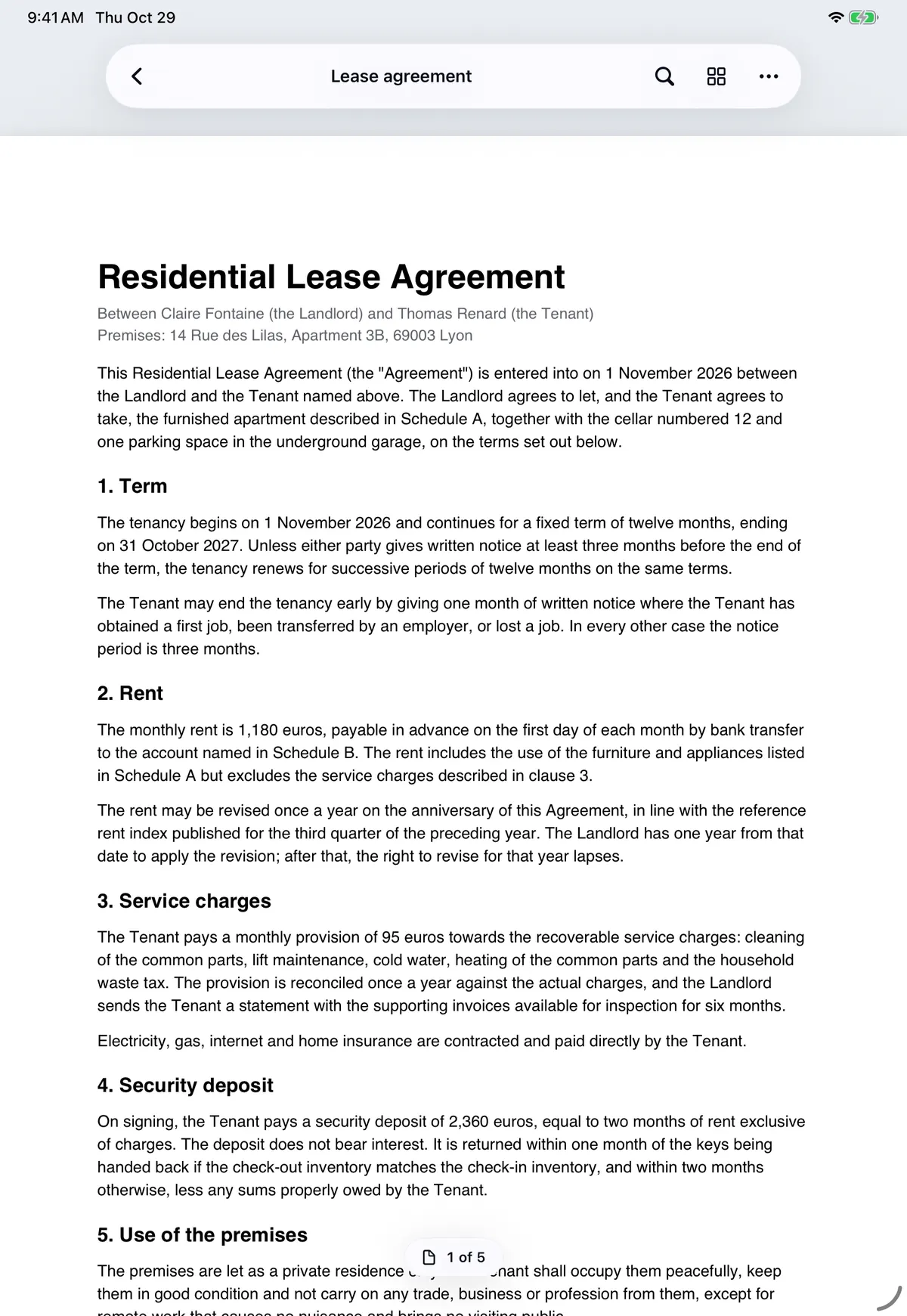
The same app, laid out for the larger screen: a sidebar for your sections, wider pages, and every tool from editing to organizing. Portrait or landscape.
-
A sidebar, not a tab bar
Documents and Settings sit in a sidebar, and the content keeps a comfortable width on the big screen.
-
Bigger grids
Larger thumbnails when you organize pages or pick pages to split, with room for more of them at once.
-
One app, one way of working
Everything you learn on the iPhone works the same on the iPad, in both orientations.
Edit PDF Offline for Mac is on its way.
The same editor, built for the desk: a window for your documents, the full keyboard, and the same promise that nothing you open ever leaves the machine.
- Edit text, merge, split and organize with the same engine as the iPhone and iPad app.
- 100 % offline on the Mac too: no account, no upload, no analytics.
- Announced here first. This page will carry the release the day it ships.
Private by design.
The app has no network code at all. Your documents are processed and stored on your iPhone or iPad, and they only leave it when you share them yourself.
-
No servers, no accounts, no uploads
There is nothing to sign up for and nowhere for a document to go. Editing, merging and splitting all happen in the app’s own engine, on the device.
-
No ads, analytics or tracking
No advertising, no analytics, no crash reporter, no third-party SDK of any kind.
-
Stored on your device
Your PDFs live in the app’s own storage. Settings shows how much space they take, and a thumbnail cache you can clear at any time.
-
Originals are never touched
Every tool writes a new document. Replacing an original is always your explicit choice, and every write is atomic, so a failure leaves no half-written file.
-
Passwords stay in memory
The password of a protected PDF is remembered for the session only. Nothing about it is written to disk.
-
Part of your backups
Like any app data, your documents are included in an iCloud or computer backup, according to your own settings.
-
Delete anytime
Delete a document or a whole folder from its menu. Deleting the app removes everything it stored on the device.
Built to be trusted with your files.
The parts you don’t see, but would miss.
-
A real PDF engine, in the app
Text editing, merging and splitting read and write the PDF format directly, with no third-party library and nothing sent anywhere.
-
Encrypted PDFs
Password-protected documents of every standard kind open, merge and split once you enter their password.
-
Forms, links and bookmarks kept
When pages move between documents, their form fields, links, outlines and annotations come with them.
-
Light and dark
Follows your device, or pick Light or Dark in Settings. Pages stay white either way, as paper should.
-
Accessible
Dynamic Type, VoiceOver labels on every control, and a Move command for people who would rather type a position than drag.
-
Undo, everywhere it matters
Text edits and page changes step back and forward until you save. Closing without saving asks first.
-
Works on a plane
Everything happens on the device, so the app behaves exactly the same with or without a connection.
-
iPhone and iPad
One app for both, iOS 17 or later, in portrait and landscape. The Mac app is coming soon.
A contract, a medical report, a pay slip. None of it belongs on someone else’s server.
Most PDF tools upload your file to edit it. Edit PDF Offline was built so that it never has to: the whole editor runs on the device in your hand, and the app contains no code that could send a document anywhere.
Good to know.
Does it need an internet connection?
No. The app makes no network requests at all. Reading, editing text, merging, splitting and organizing pages all run on your iPhone or iPad, so everything works the same in airplane mode.
Can it really change the text inside a PDF?
Yes, for text-based PDFs. The replaced text is removed from the page and the new text is written into the file with the document’s own font, or with Helvetica, Times or Courier if you choose one. The result is a normal PDF: you can still select, copy and search the new text in any reader.
What about scanned documents?
A scanned page is a picture, so there is no text to edit yet. The app tells you so instead of guessing. You can still read, merge, split and reorder scanned PDFs like any other.
Will editing change how my document looks?
Only where you edit. Unchanged text keeps its exact original bytes, and the edited line reuses the same font, size, colour, position and spacing. If your new text would run into what follows, the app says so and can shrink it to fit.
What happens to the original file?
Nothing, unless you ask. Merging and splitting always create new documents. After editing text or organizing pages you choose Save as copy or Replace original. Files you import from other apps are copied, never modified.
Can it open password-protected PDFs?
Yes. Enter the password once and the document opens, and can be merged, split or reorganized. The password is kept in memory for the session only. Text editing of encrypted documents is not available yet.
Which devices does it run on?
Any iPhone or iPad with iOS 17 or later. A Mac version is in development and will be announced on this page.
Your PDFs, edited on your device.
Edit PDF Offline is coming soon to the App Store for iPhone and iPad with iOS 17 or later. The Mac app follows.
No account · No upload · No ads · No tracking